Step 2: Connect Your Data Source

Time to complete: ~3 minutes
What you'll do: Connect Gdocify to your data source (Airtable, Google Sheets, or API)
What you'll need: Access to your data source and authorization to connect

Your data source is where Gdocify gets the information to fill into your template. This could be an Airtable base, Google Sheet, or API endpoint.

Why You Need a Data Source

Think of your data source as a spreadsheet or database that contains all the information you want to put into your documents. For example:

  • A list of candidates with their names, skills, and experience (for resumes)
  • A list of customers with their addresses and order details (for invoices)
  • A list of students with their names and course completions (for certificates)

Gdocify reads this data and uses it to fill in the placeholders in your template.

UI Navigation

Where to find it: Look for the "Datasource Config" button in the top-right area of the editor. It's one of the floating action buttons on the right side of the screen.

Connecting Airtable

If you're using Airtable:

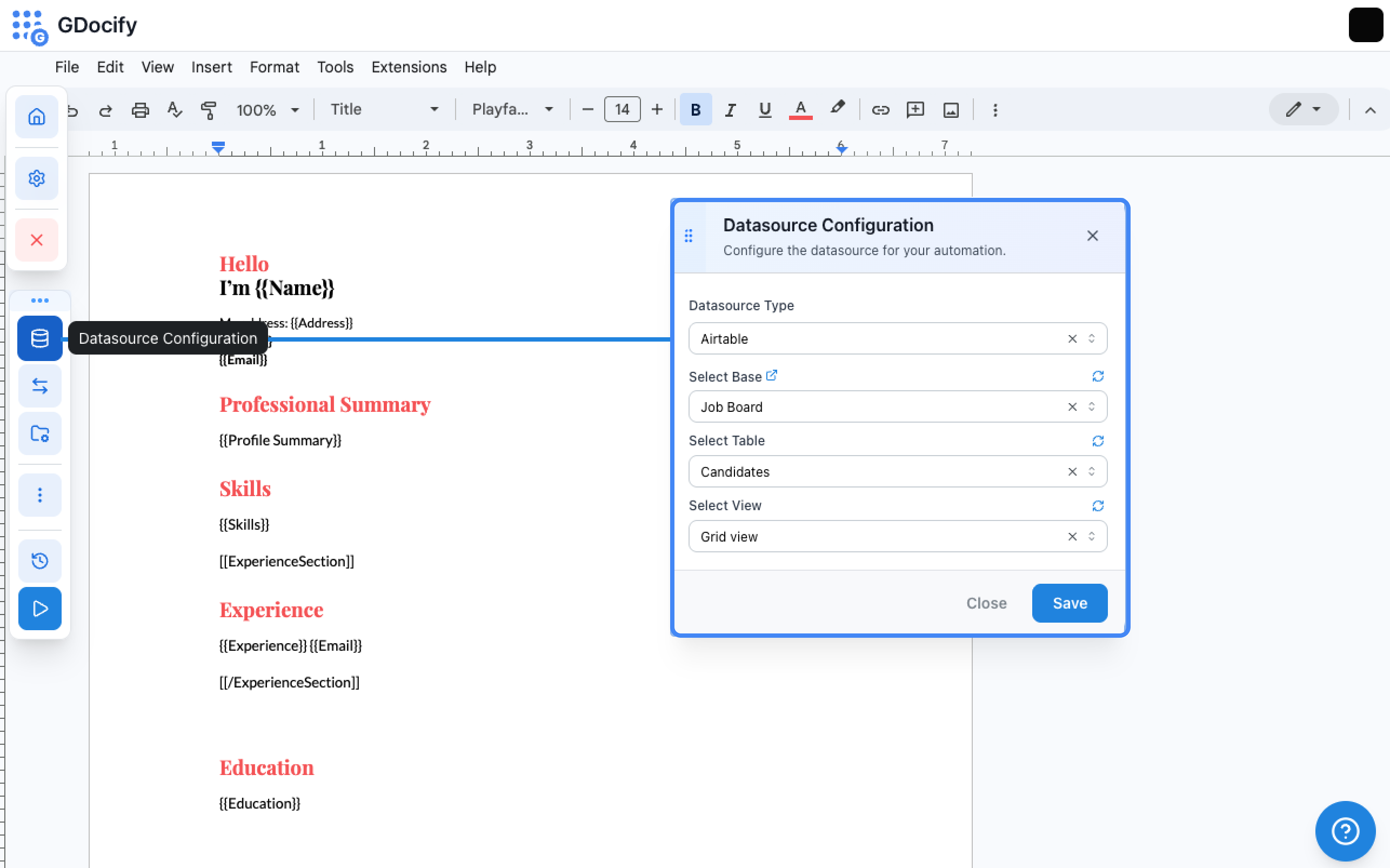
  1. Click the "Datasource Config" button (top-right floating button)
  2. Select "Airtable" as your data source type
  3. If you haven't connected Airtable yet, you'll be prompted to authorize Gdocify
  4. Grant Gdocify access to read data from your Airtable account
  5. Select your Base (the Airtable workspace)
  6. Select your Table (the specific table with your data)
  7. Optionally select a View (if you want to filter the data)
  8. Choose a Key Field (a unique identifier for each record, like an ID or email)
Screenshot Placeholder

Screenshot needed: The Datasource Config overlay showing:

  • Airtable connection screen
  • Base and Table selection dropdowns
  • Key field selection

Connecting Google Sheets

If you're using Google Sheets:

  1. Click the "Datasource Config" button
  2. Select "Google Sheets" as your data source type
  3. Use the Google Drive Picker to select your spreadsheet
  4. Select the Sheet (tab) you want to use
  5. Choose a Key Column (a unique identifier for each row)
  6. Optionally specify a Range (if you only want to use part of the sheet)

Connecting an API

If you're using an API:

  1. Click the "Datasource Config" button
  2. Select "API" as your data source type
  3. Enter your API Endpoint URL
  4. Configure Authentication (API key, bearer token, etc.)
  5. Set up Headers if needed
  6. Test the connection to verify it works

Understanding Permissions

When you connect a data source, Gdocify needs permission to:

  • Read data - To get the information for your documents
  • Access your account - To authenticate with the service

Gdocify only reads the data you specify and never modifies your original data source (unless you configure it to write back).

Verifying Your Connection

After connecting, you should see:

  • A list of available fields from your data source
  • The number of records available
  • A confirmation that the connection is successful

Expected Result

After completing this step, you should see:

  • ✅ Data source connected successfully
  • ✅ List of available fields from your data source
  • ✅ Number of records available
  • ✅ Confirmation message
Screenshot Placeholder

Screenshot needed: Success screen showing connected data source with list of available fields.

What Happens Next?

Once connected, Gdocify can see all the fields in your data source. Now you're ready to add placeholders to your template! Continue to Step 3: Add Placeholders to Your Template.

Common Issues

  • "Permission denied": Make sure you've authorized Gdocify to access your data source
  • "No data found": Check that you've selected the correct base/table/sheet
  • "Connection failed": Verify your API endpoint and authentication credentials